USER GUIDE
Schedule posts and manage your calendar
Choose a time for your posts and reschedule when plans change.
Choose a date and timezone
- Create or open an editable post and select its destinations.
- Set Schedule date & time and the Timezone, for example
America/New_York. Choose a future time. - If daylight saving time makes an hour occur twice, choose the first or second occurrence. If a local time does not exist, choose another time.
- Review warnings and choose Schedule post. Wait for confirmation, then check Calendar or All posts.
Use posting slots
Review the shared schedule or save account overrides in Planning → Posting schedules, then choose Add to queue in the composer. Destinations can receive different dates. Review each account’s next slot before adding the post.
Times stay local through daylight saving. A nonexistent spring-forward slot is skipped; a repeated autumn hour uses its first occurrence.
Schedule a finite repeat
Choose a future start time and, under Queue & repeats, select a daily, weekly or monthly rule with 2–52 occurrences. An optional end date can shorten the series. Choose Schedule post to create separate scheduled posts. Repeat rules do not apply to Add to queue or Publish now.
Repeats keep the original local time. Monthly dates clamp to the last day of shorter months, then return to the original day. Choose another time if an occurrence falls in a nonexistent daylight-saving hour.
Edit individual occurrences in Calendar or All posts. In Planning → Recurring posts, choose Stop series to return unstarted occurrences to drafts. Published and in-progress history is preserved. Each delivery still uses its platform allowance.
Use Calendar and All posts
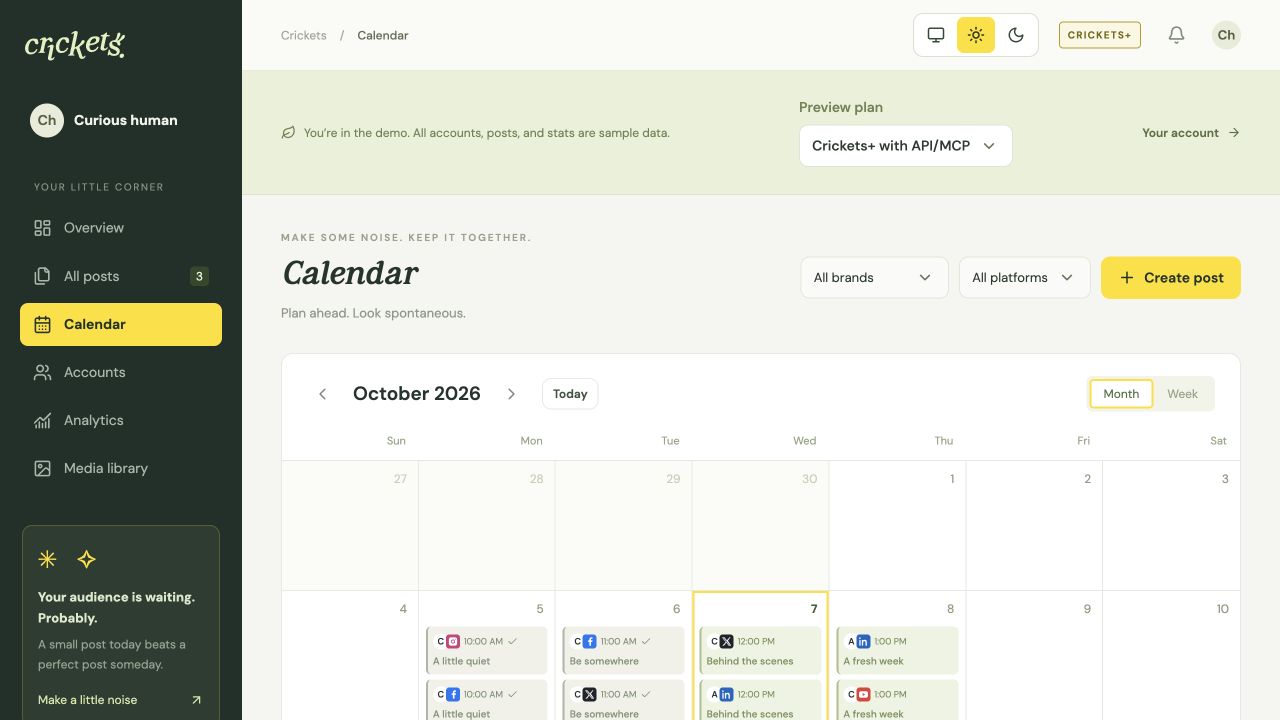
You can plan ahead and still look spontaneous. Switch between Month and Week to see the schedule. Use brand and platform filters together to narrow the view. Cards appear in chronological order.
Open an editable scheduled post to change its content or time, then save the schedule again. Use its cancel action to stop the schedule. Check the confirmation and current status after saving so you know the change took effect.
Paused and overdue posts
If Plus ends and you have more than three accounts, choose three active accounts in Account settings → Account before Free publishing resumes. All connections and history are kept.
Reschedule any posts that became overdue while publishing was paused. Restoring access does not automatically send missed posts.
When publication starts, Crickets checks connections, platform permissions, 𝕏 allowance and other publishing requirements again.
Something unclear? Tell us what would help.