DEVELOPER GUIDE
Create and manage API tokens
Create a token, store it securely, and replace or revoke it when needed.
Create a token
- Sign in to Crickets with Plus and the API/MCP add-on.
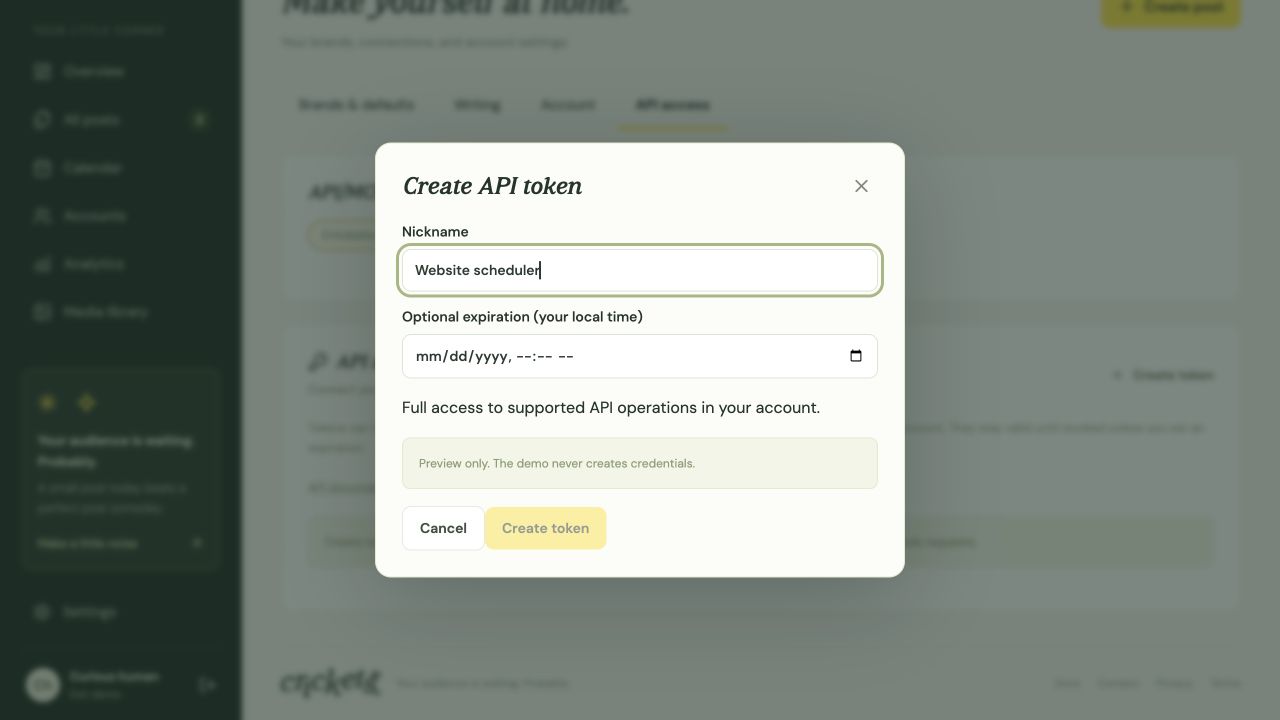
- Open Settings → API & MCP access, then choose Create token.
- Enter a useful Nickname, such as “Website scheduler”. Optionally choose an expiration in your local time. Access is automatically scoped to your account.
- Choose Create token. Copy the complete token into your integration’s secret settings. Active new or replaced tokens can be copied again from the token list.
Send it in a header
Example
# Set CRICKETS_API_TOKEN in your environment or secret manager.
curl 'https://app.crickets.social/api/v1/workspaces' \
  -H "Authorization: Bearer $CRICKETS_API_TOKEN"
The response lists the workspaces your token can access. Use the returned ID in REST paths or as workspace_id in MCP arguments.
Edit, replace or revoke
- Edit changes the nickname or optional expiry.
- Copy token copies the same active token again. Older tokens stored before this option cannot be recovered; replace them to enable copying.
- Replace invalidates the old token immediately and reveals a new one. Update your integration’s stored secret.
- Revoke stops future requests and that integration’s webhooks. Schedules already accepted remain scheduled.
- Delete removes a revoked token or MCP connection from the list after confirmation. Its revocation and history are preserved.
You can revoke a token even after the add-on ends. If a token expires, create a new one. Its last four characters help identify it; they cannot recover the secret.
Losing Plus or add-on access suspends credentials without deleting them. They work again after access is restored if they have not expired or been revoked.
Something unclear? Tell us what would help.