USER GUIDE
Upload media and write image alt text
Upload files, check platform limits, and add useful image descriptions.
Upload and reuse media
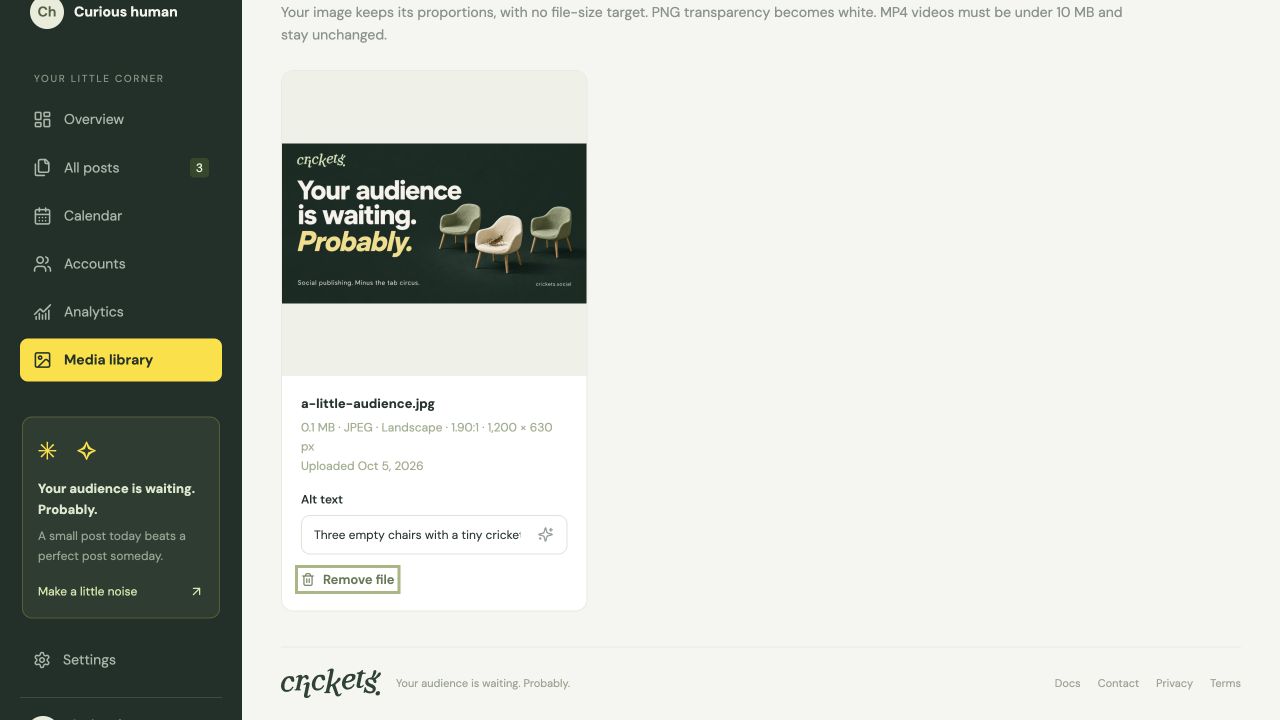
Open Media library to upload images and MP4 videos, or add them from the composer. Wait for upload and processing to finish before attaching the file.
Crickets uses the current image size and quality settings. It keeps proportions, avoids enlarging images, corrects orientation and removes source metadata. When a PNG is converted to JPEG, transparent areas become white.
The library preview shows the whole image. Check its file details and description before posting.
Add a brand logo
Open Planning → Logos. Choose a brand and upload one or more SVG, PNG or JPG files. You can rename a logo, change its brand or remove it from the chooser.
From Media library or an editable composer, choose Edit image → Add logo. Choose a saved logo, then drag it into position. Drag its bottom-right handle to resize it, or use the logo size and position sliders. You can add more than one logo. With a logo selected, the arrow keys move it.
Choose Save edited copy to flatten the logos into a new attachment. The original image stays in your library. SVGs are converted to static images; scripts and external resources are unsupported. SVGs become PNGs with transparency. PNG logos retain transparency and use the current size defaults; JPG logos use the current size and quality defaults. For an older logo with a white background, choose Edit logo and Replace logo file to upload the original SVG or transparent PNG. Logos stay in Planning rather than Media library and do not receive AI alt descriptions. Removing a saved logo keeps finished image copies available.
Crop and arrange attachments
In Media library or an editable composer, choose Edit image. Choose an aspect ratio, rotate, flip or adjust zoom and position. Under Save image, choose Create a new copy or Overwrite original. Overwrite is unavailable when any post uses the original. A new copy keeps the original in your library and replaces the attachment when editing in the composer. Edits use the current image defaults. Review the alt text after changing an image.
Drag an attachment’s grip to change its position. The insertion line shows where it will be placed. The post preview lets you step through every attachment and play videos. Previews show the complete media; the social platform may format it differently. Published history stays locked.
Check requirements
MP4 files must be strictly below 10,000,000 bytes (decimal 10 MB). A file of exactly 10 MB is rejected. Crickets does not convert or compress your video for you.
Each destination has its own media requirements. Check the composer warnings and make sure you have enough storage available.
- Bluesky allows up to four images, each up to 2,000,000 bytes. Video is unavailable through Crickets.
- YouTube requires a video title, audience setting and Public, Unlisted or Private visibility. New posts default to Private; choose the visibility you want before publishing.
Write or regenerate alt text
- In the composer, choose Add alt text or Edit alt text on an image. You can also edit its description in Media library.
- Describe the meaningful content for someone who cannot see the image. Avoid repeating the caption unless it is part of the image.
- With Crickets+, use the regeneration icon above the textarea to request an AI preview. Review or edit it; generating alone does not save it.
- Choose Save alt text. Cancel keeps the saved description. If you edit while AI runs, your edit takes priority over its late result.
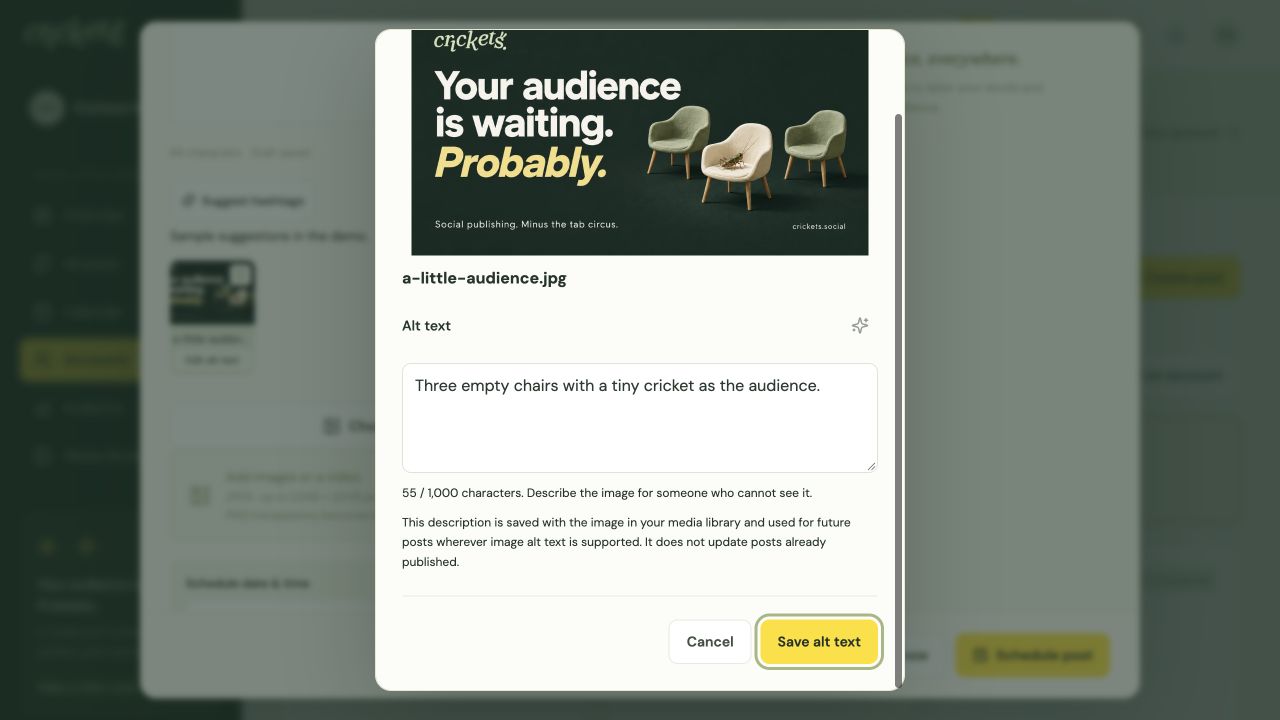
Manual descriptions are available on Free. AI requires Plus. Changing library alt text does not update posts already published.
Remove unused files
Removing an attachment from a draft leaves the file in your library. Library deletion is a separate action and is blocked while posts still use the file.
Deleting a library file does not delete a post on a social network. Keep your originals elsewhere if you need a long-term archive.
Something unclear? Tell us what would help.