USER GUIDE
Plan with templates, campaign links and goals
Reuse useful copy, label campaign traffic and find gaps in your weekly publishing plan.
Reuse a post template
A useful starting point deserves a second outing. Open Planning → Post templates, then choose Create template. Save a name, optional brand and the text you want to reuse. Planning tools are included with Free and Crickets+.
- Add placeholders such as
{{topic}}or{{link}}for details that change. Placeholder names start with a letter and can contain letters, numbers, spaces and underscores. - Choose Use template and fill every placeholder. Check the post preview.
- Choose Open in composer. Select destinations, add attachments and review the post before saving or scheduling.
You can also save and load templates without leaving the composer. Choose Save as template above the text field to save the active Shared content or account-specific text. Give it a name, optionally edit its reusable copy, and choose Save template. To reuse one, choose Load template, search or filter by brand, select a template and fill its placeholders. Review the preview, then choose Load template for an empty field, Replace text, or Insert at end. Only the active text changes; other customized text, selected accounts, attachments and scheduling stay intact. Published history has no template controls.
Templates store text only. They do not retain attachments, account selections or a schedule. Opening a template does not publish it; the composer uses its usual draft autosave.
Build a campaign link
UTM parameters are labels added to a link so compatible website analytics can identify the campaign that sent a visit. Open Campaign links → Create campaign. Enter the destination URL, campaign name and medium (usually social). An optional content label can distinguish individual posts.
- Save the campaign, then choose Build link.
- Select the source platform and review the generated link.
- Choose Copy link or Open in composer. Use the generated link on the selected platform.
The builder replaces the source, medium, campaign and content UTM fields in the generated link. Other query parameters and the page anchor are preserved. Saved posts are never rewritten. Crickets does not collect click counts, conversions or revenue through this tool; check your website analytics for attribution. Visitor privacy settings can affect what appears there.
Find gaps in your week
Open Publishing goals and choose Set goal on an account. Enter a target from 1 to 100 posts per week. Goals repeat as planning targets; they do not create or schedule posts or change platform allowances.
Weeks run Monday–Sunday in your saved timezone. Use the arrows to inspect another week, or This week to return. Brand and platform filters work together.
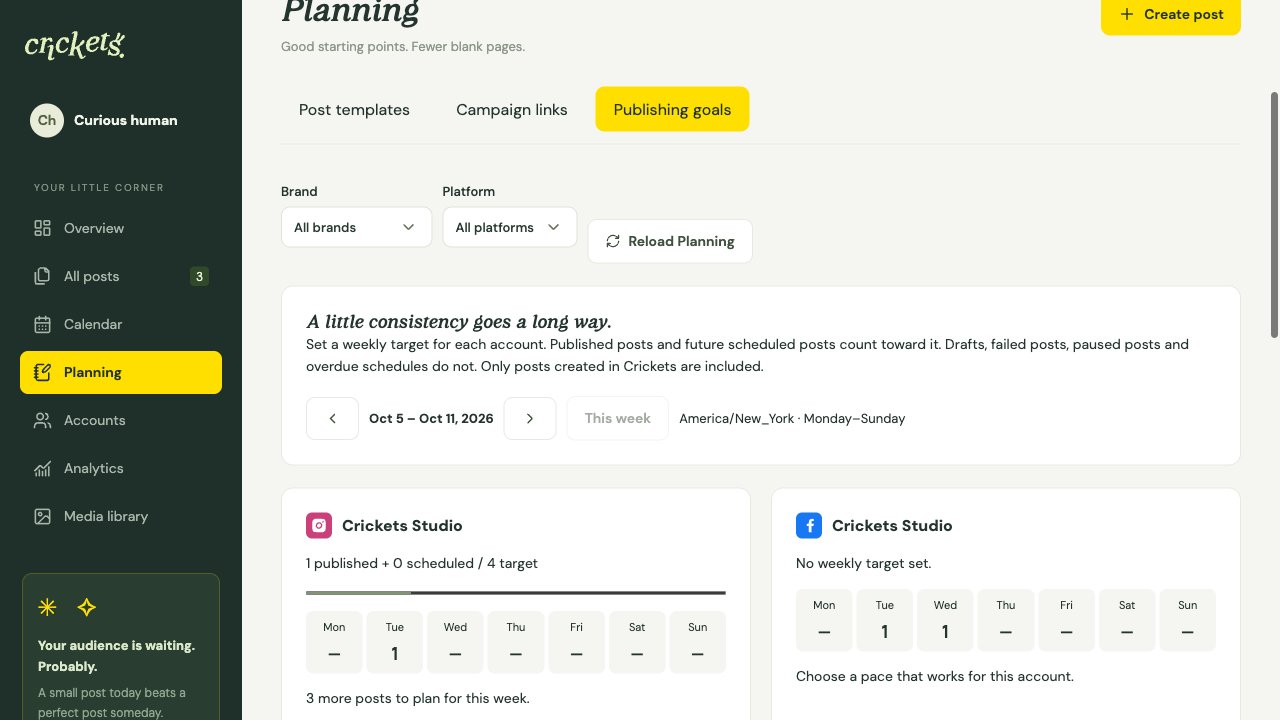
Each account shows actual published deliveries and future scheduled deliveries from posts created in Crickets. Drafts, failed posts, paused deliveries and overdue schedules do not count as upcoming coverage. Accounts with paused publishing show published deliveries only. One post sent to two accounts counts once for each account. External social posts are not imported.
Choose Create post on an account to open the composer with that account selected. Choose the publication date yourself. The daily counts help you decide where a gap needs attention.
Save a regular posting schedule
Open Posting schedules and select Shared schedule. Each day starts with 9:00 AM, 12:30 PM, 5:00 PM and 7:30 PM in your workspace timezone. Edit, add or remove times, turn days off, and choose the timezone. Save the shared schedule, then use Add to queue in the composer. Each selected account gets its next free slot. Select an account and uncheck Use shared schedule to save custom times. Existing account schedules remain custom. Check it again and save to return to shared times. Changing slots affects newly queued posts.
Suggest posting times compares recorded likes and comments from Crickets posts in the last 90 days. It needs 10 posts with both counts known and at least three in the same local hour. Results reflect content, audience and post age as well as timing; they do not predict engagement.
Pause pending publishing for this account stops pending deliveries for that account. An already-started delivery may finish. On resume, overdue queue posts move to free slots; overdue posts with a specific time need explicit rescheduling. Pausing does not delete posts.
Keep your plan tidy
Search templates and campaigns by name or content, and filter them by brand. No brand shows ungrouped items. Editing a saved template or campaign leaves existing posts unchanged. Removing a goal leaves its account and history intact. Up to 500 planning items can be saved.
If an item changed in another browser tab, Crickets asks you to reload Planning before saving again. Your unsaved form text stays visible so you can copy it first.
Something unclear? Tell us what would help.