USER GUIDE
Create and publish a post
Start with one draft and give each account the version that fits.
Write a post
- Choose Create post. If you have brands, choose a brand or All brands. Your saved default is used when it is valid.
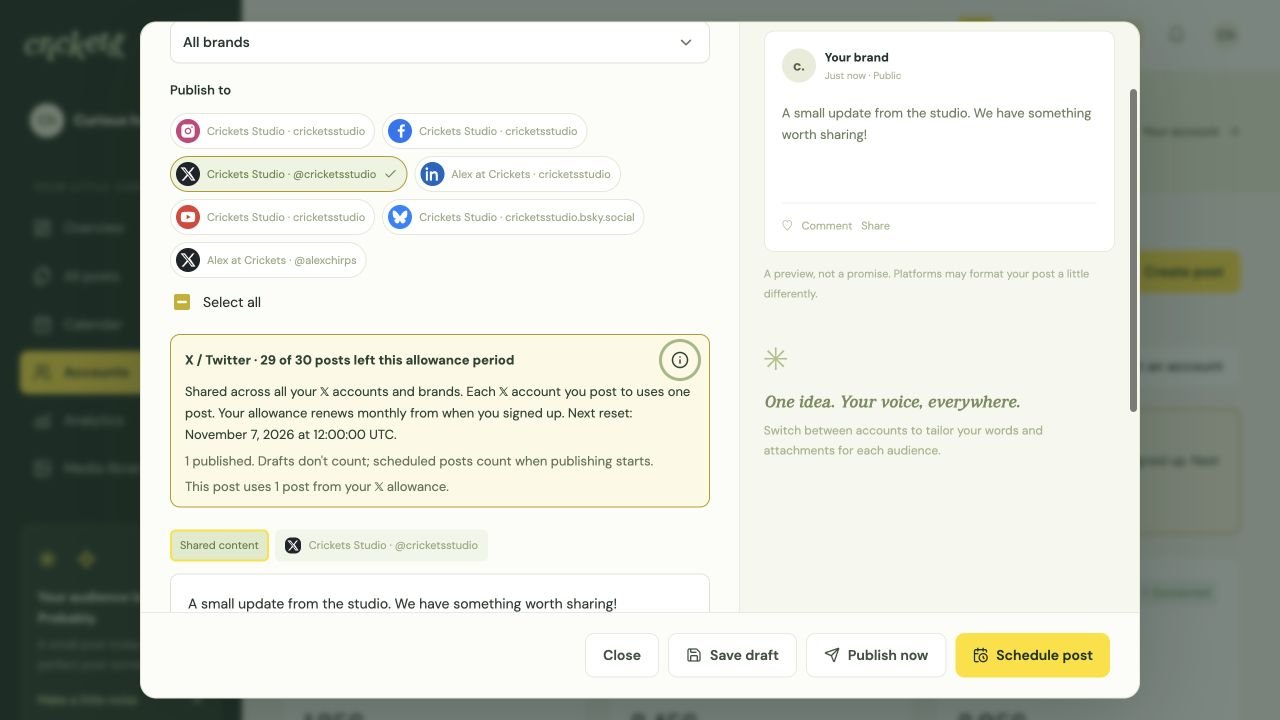
- Under Publish to, select the accounts that should receive this post. Select all applies to the visible account choices.
- Write in Post content. Check the destination previews and any platform-specific warnings.
- Choose Add media or the media-library control when you need attachments. Review image alt text and platform-required fields such as a YouTube video title.
Tailor each destination
A destination is one of the accounts selected for your post. Shared content gives them the same starting text and attachments.
Select an account’s content tab to change its text. Use its media controls to choose different attachments where supported. Check the account name and handle, especially if you have several profiles on the same network.
Brand and platform filters narrow the account choices. No brand shows only ungrouped items.
Crickets+ includes AI Rewrite, hashtag suggestions and AI alt text. Review suggestions before using them. Manual writing, hashtags and alt text are available on Free. Read the media and alt-text guide.
Create an Instagram Story
Select the Instagram account’s content tab and set Instagram format to Story. Attach one image or MP4 video. A 9:16 crop fills the screen; videos must be 3–60 seconds and strictly below 10 MB. Story publishing requires a Business account, checked before scheduling and again before publication.
Story media is published as supplied. Post text is not a Story caption. Music, interactive stickers and first comments are unavailable. You can choose different text and media for other destinations in the same post.
Add a first comment
Select an Instagram, Facebook Page or LinkedIn account’s content tab and enter First comment (optional). Use up to 2,000 characters. The comment is sent after the platform confirms the main post; it cannot guarantee being the first reply from anyone.
Comment access must be approved and granted to the connected account. Meta customers reconnect after approved comment access is available. LinkedIn requires separate feed comment permission; an ordinary posting connection alone is insufficient. Remove the comment to publish without that permission.
Delivery details show the comment’s outcome separately. A comment failure does not change a successfully published post to Failed. If delivery is uncertain, check the platform before choosing Retry first comment.
X subscriptions and threads
Select an X account’s content tab to see its subscription status and character limit. Crickets checks this during the daily follower refresh. Refresh X subscription checks it directly; recent results are reused for five minutes. Unverified or expired results use the standard 280-character limit.
A verified active Basic, Premium or Premium+ subscription allows composing up to 25,000 characters. X checks what your account and connection can publish. Crickets checks your subscription again before sending longer text. If your subscription ends or X rejects the longer post, your text is preserved and delivery details explain the failure. Shorten it, use a thread or renew your subscription, then reschedule.
- Select the X account’s content tab. The main text becomes post 1.
- Choose Add thread post and write each reply. You can remove replies or move them up. A thread can have one opening post and up to five replies.
- Check every part’s character count. Attachments go on post 1. Other selected platforms receive their own content, without the X replies.
- Save a draft, schedule or publish. The entire thread uses one X publication from your allowance.
Threads publish in order, with each new post replying to the preceding one. If a thread stops partway through, delivery details retain links to confirmed posts. Check X before creating only the remaining posts. Crickets blocks a whole-thread retry when any part was published or its outcome is uncertain.
Save or publish
| Action | Result |
|---|---|
| Save draft | Keeps an editable draft in Crickets. It does not publish. |
| Publish now | Queues immediate publication to the selected destinations. Check delivery details for confirmation. |
| Schedule post | Saves a future publication time in the selected timezone. See the scheduling guide. |
| Add to queue | Uses each selected account’s next free posting slot from Planning. |
Autosave helps keep draft edits, but use the final action and check the confirmation before leaving. Learn about scheduling and timezones.
Read published details
Open a post in All posts or the Calendar to see its destinations, recorded publication times and available engagement. Published and publishing history is locked. To make another version, duplicate into a new draft.
Mark as deleted changes a history tag in Crickets; it does not delete anything on the social network. You can undo the tag. Deleting a Crickets draft also does not delete a social-network post.
Something unclear? Tell us what would help.